
Prompt
Look up from the page. Prompt scrolls your words at your pace, so you can talk to the camera, or the room, and not read at them.
Good evening, and thank you for coming. [PAUSE]
Tonight I want to share one small idea. [EMPHASIS] Read less. Say more.
»» FASTER When you know your words, you can look up. You can look at the camera, at the room, and at the people who came to listen.
«« SLOWER That is what a teleprompter is for. [PAUSE] Not to read to people. To talk with them.
So, let us begin.
The orange cues act as you read: a pause holds, faster and slower change the speed. Click the prompter, then try Space, ↑ ↓ and M.
Write it
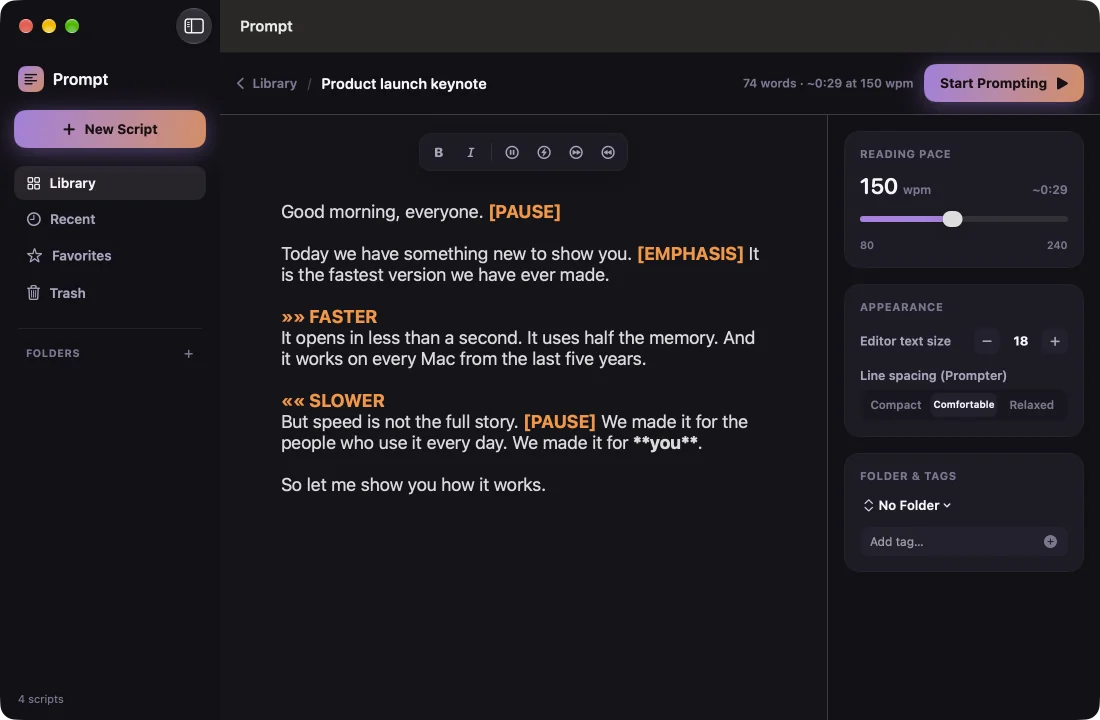
Mark the moments
Type a cue where you want a breath, a stress or a change of pace. The editor colours it, and the prompter follows it.
[PAUSE]Hold for a breath.[EMPHASIS]Stress this line.»» FASTERPick up the pace.«« SLOWERLet it land.
Time it
Know how long it runs
Set your words per minute, and Prompt tells you how long the script takes to read. Try it with your own numbers.
to read
Read it
It listens, and keeps up
- You speak Speech recognition runs on your Mac. Nothing goes to a server.
- Prompt measures It counts your words per minute as you read.
- The scroll follows It changes the speed, gently, to match you. Choose Low, Balanced or High.
- Your camera behind the words Show yourself behind the text and record a take with one click. Then open it in Finder.
- Mirror for glass Press M to flip the text for a teleprompter mirror.
- Keys for everything Space plays or pauses, ↑ ↓ set the speed, R records and Esc stops.
Keep it
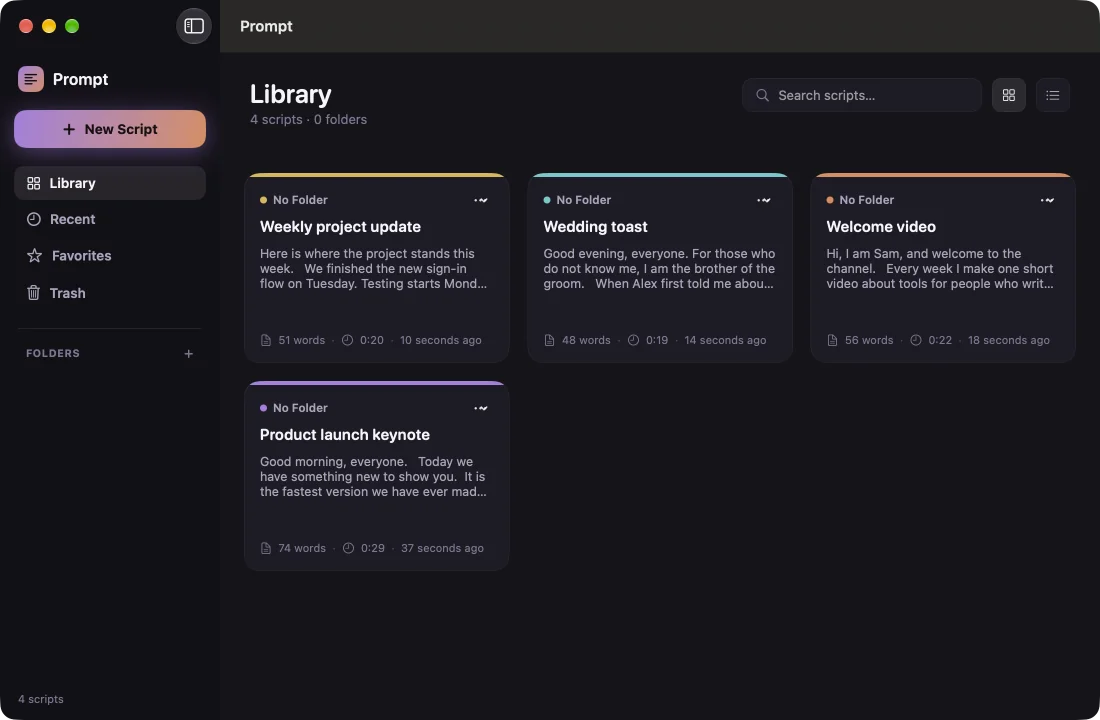
Every script in one place
Search all your scripts. Sort them into folders, star the ones you use most, and find recent ones fast. Deleted scripts wait in the Trash.
Your scripts and recordings stay on your Mac. No accounts and no analytics.
Install Prompt
- Download the disk image. Open it and drag mac-prompt to your Applications folder.
- Open Prompt. It is not notarized by Apple, so macOS stops it the first time. Close the warning.
- Open System Settings › Privacy & Security, find the message about mac-prompt, and click Open Anyway. You do this only once.
- Click New Script, write or paste your text, and click Start Prompting.
The first time you use the camera or voice tracking, macOS asks for access to the camera, the microphone and speech recognition. You can turn both off in Settings.