Flip Clock
The clock from a 1970s train station, on your desktop. The digits fill any window, and every card falls and settles like the mechanical original.
The flip
A leaf, not a fade
Most flip clocks cross-fade two pictures. In Flip Clock, the top half of the old card is a leaf. It falls under gravity, gets faster on the way down, and bounces a little when it hits the stop.
Its shade comes from its angle. It goes dark as it turns edge-on, and light again as it lands. Watch the card here in slow motion.
The fit
Any window. No clipping.
Make the window wide, square or tall. The digits grow to fill it on the short side, with an even margin, and never get cut. Press ⌘= to snap the window to the clock's own shape.
Or drag the corner of the window.
The alarms
Out of sight until you need them
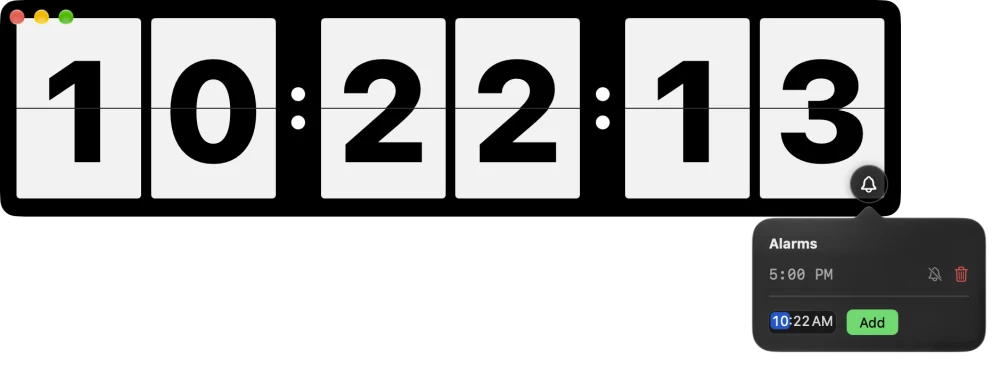
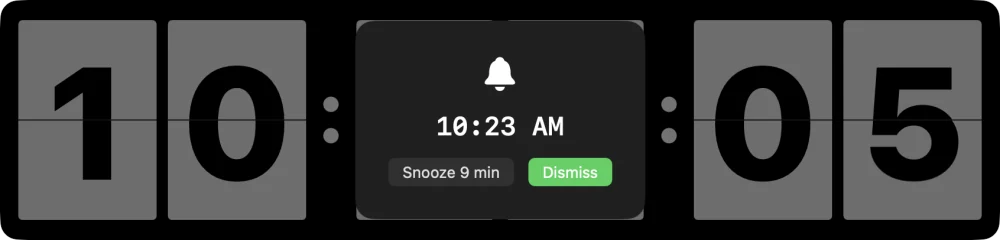
Move the pointer over the clock and a bell appears. When the pointer leaves, the window buttons and the bell fade, and only the clock stays.
-
A Dock icon that tells time
The icon changes on the minute, like this one. It stays correct after sleep and time zone changes.
-
Seconds, or not
Show or hide the seconds. Flip Clock remembers your choice.
-
Always on top
Keep the clock above your other windows while you work.
Install Flip Clock
- Download the disk image. Open it and drag flip-clock to your Applications folder.
- Open Flip Clock. It is not notarized by Apple, so macOS stops it the first time. Close the warning.
- Open System Settings › Privacy & Security, find the message about flip-clock, and click Open Anyway. You do this only once.
- Resize the window as you like, then press ⌘= to fit the window to the clock.
The same commands are in the Clock menu and when you right-click the clock.